


A Screen Recording action overrides properties found in the Screen Recording Properties panel.
A Screen Recording Action can only be used on Screen Recording clips.
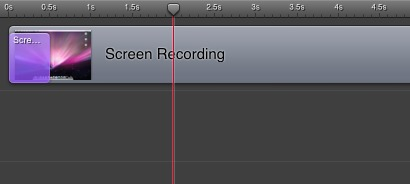
Below is a screen-shot of a Screen Recording action on a screen recording clip. The colored action rectangle starts at time 1.5s (1.5 seconds), and continues until time 2s (2 seconds):
It is best to think of a Screen Recording Action as a marker in your presentation; a place where properties change.
Everything to the left of the Screen Recording Action is the
before
state.
Everything to the right of the Screen Recording Action is the
after
state.
Everything inside the Screen Recording Action is transition, or
ramp up/down
.
To edit the properties of a Screen Recording action, you must move the Scrubber to the left or right of the Screen Recording Action.
If you move the Scrubber to the right of the Screen Recording
action, then change a Screen Recording Property, you will affect the
after
state of the Action. When the action completes, the value
will be what you configured. You can edit the after
state by
moving the Scrubber anywhere to the right of the clip, as long as the
Scrubber is before any other Screen Recording Action.
If you move the Scrubber to the left of the Screen Recording
action, then change a Screen Recording Property, you will affect the
before
state of the Action. When the action begins, the value
will be what you configure. You can edit the before
state by
moving the Scrubber anywhere to the left of the clip, as long as the
Scrubber is after any other Screen Recording Action.
Using the above screen-shot, we have a Screen Recording Action starting at time 1.5s, and finishing at time 2s. If you move the Scrubber to time 2 (as shown) and set the Pointer Zoom of the Screen Recording Properties to 200%, then play the presentation, the Mouse Pointer will increase from 100% to 200% over 0.5 seconds of your presentation, starting at 1.5 seconds in. Thereafter, the Mouse Pointer will stay at 200%, until you add another Screen Recording Action.
Thus, an Screen Recording Action changes the state of your properties (the pointer zoom, etc.), while defining the duration of the change.
