


The preview is where you spatially arrange media in your project.
Clicking on any object in the window will select it, and you can then resize it, or move it around.
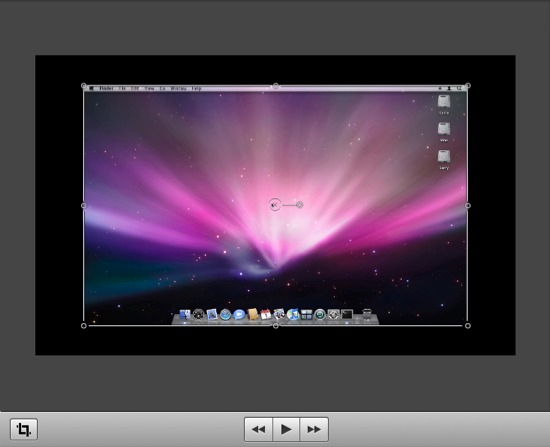
You can use the handles on the edge of the media to resize the image.
You can use the rotation handle  at the middle of your
media to rotate around the Z axis (tilt the image). To rotate around
the Y or X axis (in and out of the screen), please see the Video
Properties.
Here the screencast has been resized:
| SHIFT | when resizing the media aspect ratio is respected. |
| COMMAND | snapping and guides are ignored. |
| CONTROL | cropping is performed on the object. |
If you want to have a clip move over the screen as part of your presentation, you need to use a Video Action.
