


[Cette partie n'a pas encore été traduite.]
When you select this menu item (or click the relevant Toolbar button), a web capture sheet rolls out of the document window. There you can enter your desired web site URL. Press [Return] to see if you have entered the right URL which will be rendered in the web capture view of the sheet. Previously entered URLs are remembered in the input combo box.
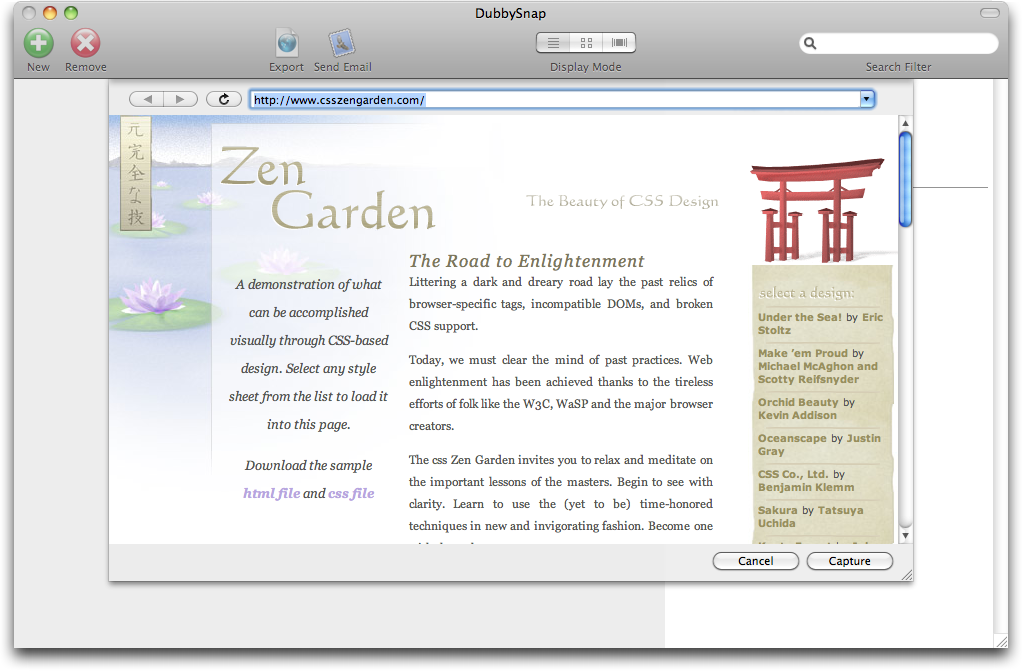
When you click the [Capture] button, the new URL capture will be added to the database.
Important : Please note that the entered URL cannot be changed once you have added it to the database.
[Cette partie n'a pas encore été traduite.]
When you have selected a capture URL in the list, you can select
this menu item (or click the relevant Toolbar button). This function
renders the content of the capture URL into a file which then will be
exported to the place you choose. DubbySnap currently supports various
export formats: PDF, as well as TIFF, JPEG, JPEG-2000, PNG, and GIF.
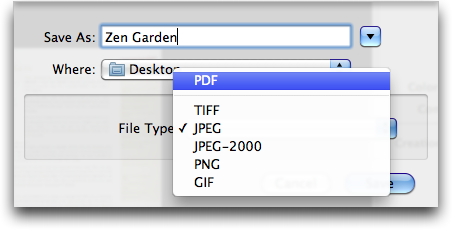
Remarque : When you have selected more than one capture URL, all selected documents will be exported. The first one gets the defined file name, while all other exported files get increasing numbers added to the file name.
[Cette partie n'a pas encore été traduite.]
You can also send a captured document via email, directly from
within DubbySnap. Simply choose a capture URL and select this menu
item (or click the relevant Toolbar button). DubbySnap will then
create an email attachment file in the format you have chosen, and
then opens it in a new email in your favorite email client. DubbySnap
currently supports various email attachment formats: PDF, as well as
TIFF, JPEG, JPEG-2000, PNG, and GIF.
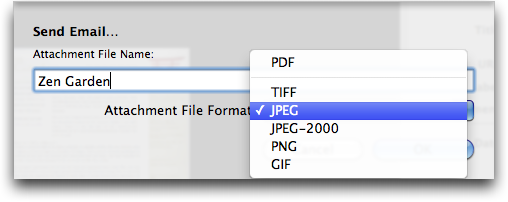
Remarque : When you have selected more than one capture URL, all selected documents will be attached to the email. The first one gets the defined attachment file name, while all other attached files get increasing numbers added to the file name.
