


The Metrics Inspector allows precise numerical control over the position, size and rotation of objects on the page.

controls the position relative to the bottom left corner of the page. The button at the far right centres selected objects on the page. (Holding the option key while clicking the button will center objects only horizontally.)
controls the size of the object. The [Original Size] button resets an object's size to what it was when originally added to the document.
will force the object to always resize proportionately. The Scaling feedback area indicates the object’s current size, relative to its original size.
is a factor of the horizontal and vertical scaling proportions, thus providing a numerical reflection of the amount by which the current size’s proportion deviates from the original size’s proportion.
button restores a resized object to the size it was when originally created.
hosts the resizing templates menu.
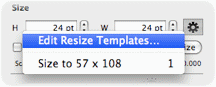
This menu lists the currently defined object resizing templates
and provides access to the template editor. To quickly resize an
object to a predefined size select the object, click the action button
and select a template from the menu (or press the number shortcut
listed at the far right of the desired menu item). To define new
templates or to remove existing templates select the Edit Resize
Templates
menu item.
This brings up the template editor:
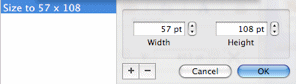
The editor is very straightforward: click the [+] button to add a new template; click the [–] button to remove any selected templates. To rename a template, double click its name in the list. Use the Width and Height fields to set the template’s predefined dimensions.
controls the rotation of the object (by degrees).
Objects that are locked for editing cannot be deleted from the pages, nor can they be moved by the mouse. But they remain editable by the inspector controls.
