


Advanced settings are a part of the Preferences Window. The
preferences window can be opened by selecting Preferences
in
the ScreenFlow
menu, or pressing command-,. Then press the
Advanced
button in the tool bar.
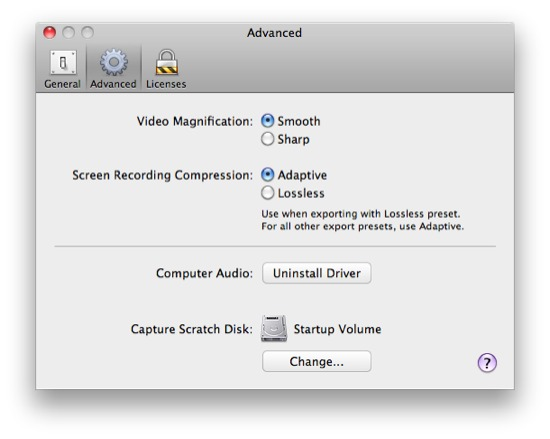
By default magnification of video images will interpolate
pixels to give a smooth look, you can turn this off by selecting
Sharp
.
default: Smooth
Normally you should use adaptive compression when doing screen
recordings for best quality, but if you intend to export them using
the Apple Lossless codec for use in Final Cut Pro or other editing
software, you may get better image quality by setting the recording
compression to Lossless
.
default: Adaptive
The computer audio driver is a very small system extension that allows ScreenFlow to record the audio as it goes to your speakers. If you wish to record your computer audio, you must have this driver installed.
If ScreenFlow is not recording, then the driver is not active or running. When ScreenFlow is recording, the driver acts as a splitter, diverting the audio to ScreenFlow while allowing it to continue to your speakers. This system allows you to record any audio, from any source. The major benefit is that there is no configuration, and no need to divert other application output to ScreenFlow.
If you hover the mouse over the Uninstall button, ScreenFlow will display the current driver version.
If the button says Install Driver
then the driver is not
yet installed. To install the driver, click the Install Driver
button and follow the installer directions. If the button says
Uninstall Driver
then the driver is currently installed. To
uninstall the driver, click the Uninstall Driver
button.
While recording, ScreenFlow needs a scratch disk to save intermediate files. These files can be very large. This options allows you to tell ScreenFlow where to put the temporary files.
By default, ScreenFlow uses the Startup Volume.
