


Create a Text Box clip by selecting Text Box
from the
Insert, pressing the Add Text Box
button at the bottom of the
Text Properties panel, or the +
button at the top of the Text
Properties panel.
This is a newly created Text Box:
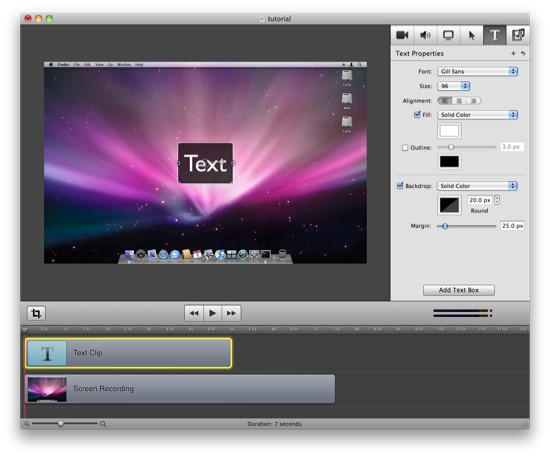
To edit text, select the Text Box and start typing. Alternatively, click in the Text Box again once it is selected to begin editing at a certain point. The Text Box acts like a normal Text Editor: the Arrow Keys will move the cursor and clicking the mouse will move the insertion point. Double click on a word to select that word. Click-dragging is supported for making a selection of text. To stop editing the text, press the Escape key. The Text Box will remain selected, but text cannot be entered. Click in the box to start editing again.
Text Boxes can have multiple Fonts, Sizes, and Styles applied to different pieces of text inside the Text Box.
The Text Style can be changed via the Font menu or by modifying the properties in the Text Properties panel.
Use the mouse to select the piece of text to modify. To select all
the text, select Select All
from the Edit
or press
command-a while the cursor is inside of the Text Box. Alternatively,
press the Escape key while you are editing to select the whole
contents of the Text Box.

ScreenFlow Text Boxes can have a backdrop in the form of an image or a solid color with optional rounded corners.
See the Text Properties for available options.
ScreenFlow Text Boxes also respect Video Properties (Scale, Reflection, Shadow, Position/Rotation). These properties (especially Shadow) can be very useful when modifying the look of your text, as shown in Example Image.
See the Video Properties for available options.
