


This option copies the items if the destination is in a different hard drive than the source; otherwise, it just moves them.
Tip: if you want copy the items in the same source disk, you can assign a Finder Tag to them and then do the copies from the Finder.
You can move/copy the selected items or the content of a selected box.
To move/copy selected items you must select at least one item
and choose the Selected items...
menu item from the Move and
Copy
pull down menu of the toolbar or from the Result menu.
To move/copy the contents of a box you must choose the
Content of Selected Box...
menu item from Move and Copy
pull down menu.
Both menu items will open a Save dialog window where you can choose the destination, then if a valid location was chosen, a Move and Copy option window will open, allowing you to further customize the action you are performing.
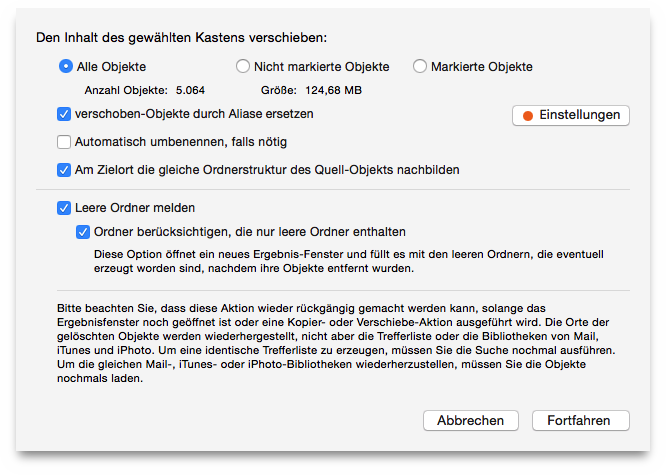
Move and Copyoptions window.
First, select the appropriate radio button:
| All items | if you want to move/copy all the chosen items. |
| Unchecked items | if you have marked items and don’t want to move/copy them. |
| Checked items | if you want to move/copy those marked with a check-mark. |
The information fields will be automatically updated.
renames an item by adding an incremented number at the end of the name if an item with the same name already exists in the destination.
if checked, recreates in the destination the same folders structure of the source item.
For example, assume you are copying an item called myFile
that resides in /MyVolume/Users/Your_User_Name/Folder
A/MyFolder/myFile, to a destination called Duplicates.
This
option results in all needed folders having the same path, so the new
location of the copied file will be: /Duplicates/MyVolume/Users/
Your_User_Name/Folder A/MyFolder/myFile.
This option is useful to quickly find items you want to restore and its use is advisable for a backup.
lists the empty folders that are created after items are removed and lists them in a new result window.
By removing an empty folder you may have created yet another
empty folder, so you can use the Include folders that contain only
empty folders
option to list the folders that contain only empty
folders. This will reduce the total number of searches needed to one.
missing filelinks in the owned application. The synchronization will be made only if you use one of the trash options.
