


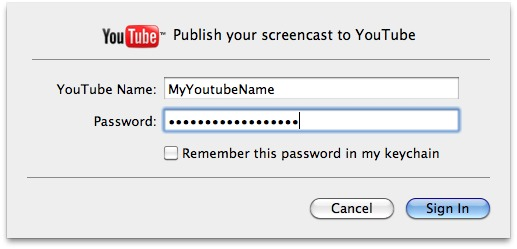
If you have a YouTube account you can upload your screencast to
YouTube by selecting Publish to YouTube...
from the File
menu. This first popups the login dialog.
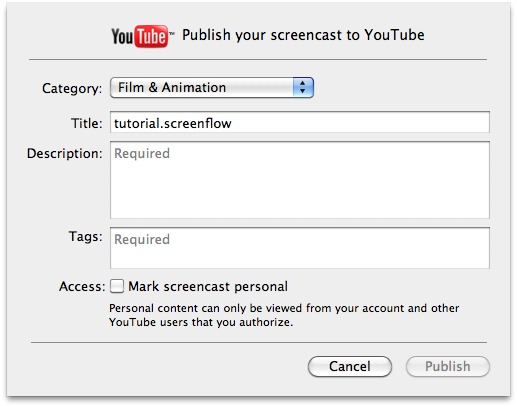
When you have logged in, you get a new dialog where you fill in
the necessary information describing your screencast. Note that all
fields have to be filled in for the Publish
button to be
activated. Press it to start the export and upload of your screencast.
A progress bar will indicate the progress of the export and upload
processes. You can press Cancel
to abort an upload.
You can specify HD quality upload, for higher resolution video.
