


To convert your screencast into a Flash video that you then can
put on your website, select Publish to Flash...
from the
File
menu. This pops up the following dialog:
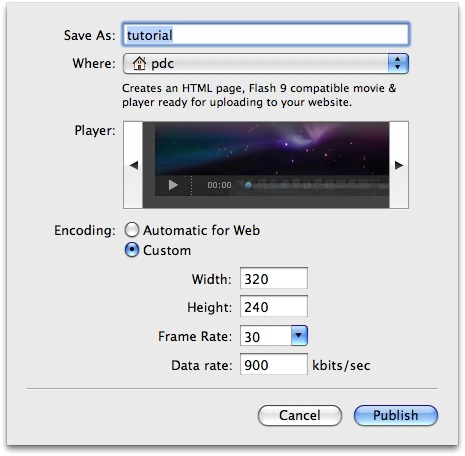
You can accept suitable defaults for a web video or create custom
settings. You can also choose from different skins for the Flash
player. When you press the Publish
button the following will be
created in the directory you select:
movie.f4v, your screencast in Flash format.
index.html, an HTML page containing a player showing movie.f4v. You may edit this file to suit your design requirements, or use it as a template for incorporating the video in a different webpage.
player.swf, the player itself.
com, a directory containing the skin for the player.
If you have a web server on the same machine you are running ScreenFlow on, you can place the output directory in (a subdirectory of) /Library/WebServer/Documents/ and have your video immediately accessible to the world.
Example:
If you have placed your output in
/Library/WebServer/Documents/prettyvideo/ on
webserver.comp.com, opening
http://webserver.comp.com/prettyvideo/ in a web browser will
show your video.
