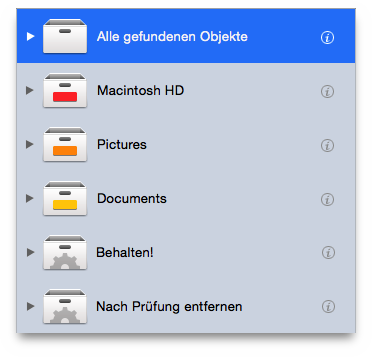
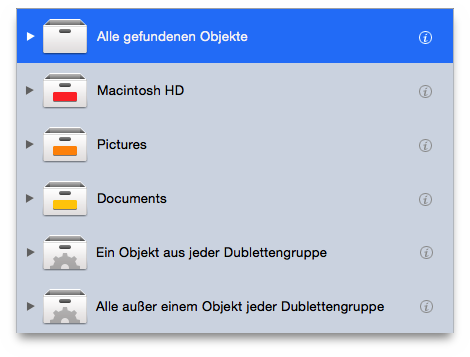
Tidy Up installs two default smart boxes:
If one or more priorities have been assigned to any location, (for
further info, refer to the Priorities section). Tidy Up will create
two smart boxes Masters
and Items to remove.
If, instead, no priorities have been assigned, Tidy Up will create
two smart boxes called An item of each duplicate group
and
All but one item of each duplicate group
. The latter two boxes
are not directly affected by the location (as a criterion) of the
items, or by any other criteria.
in this smart box Tidy Up will gather all the items that have the highest priority in their duplicate group. In case the highest priority is the same for some of the items in a duplicate group, Tidy Up will randomly select one of these. These items are generally the ones you should keep.
in this smart box Tidy Up will gather all the items that do NOT have the highest priority in their duplicate group. The item left out for each group will be the one with the highest priority (of course, it will be put in the Masters box). In case the highest priority is the same for some of the items in a duplicate group, Tidy Up will randomly select one of these. The items in this box are generally the ones you want to remove.
in this smart box Tidy Up will randomly put an item for each duplicate group.
in this smart box Tidy Up will put all the items but one for each duplicate group. The item left out will be chosen randomly. If you are not interested in where the duplicates reside, or if you ran a search in iTunes, iPhoto, Mail, or Aperture, you can trash the content of this box.
Before trashing the content of the default boxes, you must pay
attention to what items they contain or you could lose important data.
See Restore
to learn how to restore unwanted trashed items.