


Use a manual box when the other boxes don’t contain the items you need to manage or when the smart box criteria system doesn’t support the characteristics you need.
A manual box is also useful when you want to store something to be recalled. You can manually mark each item you would like to process, or you can create a manual box and move all the items you would like to process into the new box.
check the item in the found list, or select the item, then from
the Result
menu or by invoking the contextual menu (control
click) choose Check/Un-check
menu item.
Alternatively, you can select the items and press command
key+X
(this action toggles the current state).
Choosing New Box
from the File menu or the first button at
the bottom-left side of the result window will create a new manual
box.
Drag the items you wish to process into the new box.
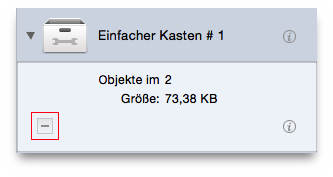
To remove items contained in the box, click on the box, select the
items to remove and then click on the -
button in the box
(red-square in the image above). The items will be removed only from
the box, NOT from the found list.
Tip: Because Tidy Up tracks trashed items, it requires you to confirm the action each time you trash an individual item. To avoid having to repeatedly acknowledge the confirmation window, use the manual method to remove all the items in one operation.
