


This set of criteria consists in four extremely useful sub-sets; they are the fulcrum of the smart box system.
Tidy Up assigns a colored label to each location chosen in the
Sources
. Here is where you can use the assigned labels as an
option to quickly identify the items to manage. These options are
available only if a search in multiple locations has been performed.
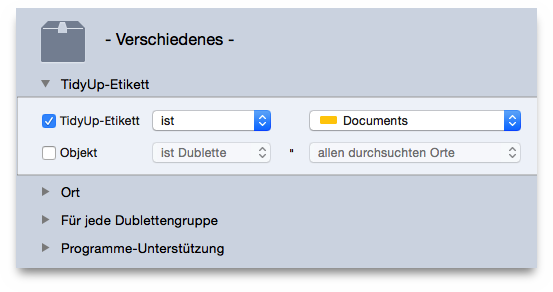
reports only the items that have or do not have the chosen label(s). This is useful when you want to locate items which reside in a specific location(s).
allows you to locate items which are/are not duplicates with items that reside in a specific location(s). The location options, other than the locations you have searched in, are two:
| A location only | with this option, the items reported will be (won’t be, if
is not duplicatehas been chosen) duplicates only with other items that reside in the same folder. |
| All searched locations | the items reported will be duplicates (won’t be, if is not duplicatehas been chosen) in every location you have searched in. The combination of these two options can help to quickly locate the items to manage. For example, a search has been performed for duplicates in three different locations (folders A, B and C) and you want to trash only the items that are in folder A and are duplicates with the items of the folder B; in this case you would assign the following criteria: Tidy Up label is folder A and item is not duplicated in folder C. |
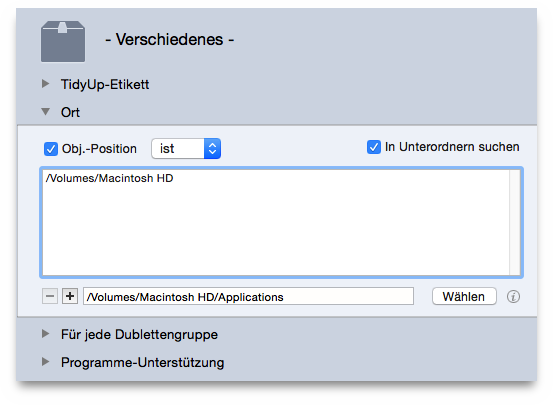
reports the items that reside/don’t reside in the chosen location.
Select this option if the first level's folder isn't sufficient; this allows Tidy Up to search deeply in all the folders contained in the chosen location.
The combination of this option with the Tidy Up label is useful
when, for example, you need to exclude folders inside a labeled
location. For example, assume you initiated a search in two different
locations (folder A and B) and want to trash the duplicates that
reside in the folder A; but the folder A contains a folder, called
Precious, which must be left untouched. To accomplish this, assign the
following criteria: Tidy Up label is folder A, item location is not
/The_Path_of Folder_A/Precious, checking search in subfolders
.
These options should be used to be sure that you leave at least an item of each duplicate group untouched. The use of one of these options in conjunction with others will help you find the items you need to manage.
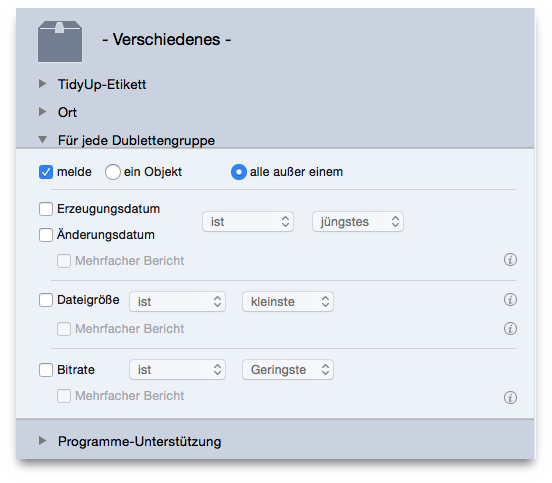
these options report an/all but one item of each duplicate group without taking any attribute into account. Used in combination with Tidy Up label or Location options this will help you quickly identify the items to manage.
Example: assume a search has been completed in two different locations (folder A and B) and you want to trash the duplicates that reside in the folder A; but, while A contains items that are duplicates with folder B, it may contain items which are duplicates only with other items of the folder A. To be sure to leave at least an item untouched, assign the following criteria: Tidy Up label is folder A, for each duplicate group report all but one.
will report the item for each duplicate group whose date
created/modified is newest/oldest. The example above can be applied
using date options (such as item’s date created is oldest
)
instead of for each duplicate group report all but one
.
will report the item for each duplicate group whose file size
is smallest/biggest. The example above can be applied using date
options (such as file size is smallest
) instead of for each
duplicate group report all but one
.
will report the item for each duplicate group whose bit rate is
lowest/highest. The example above can be applied using date options
(such as item’s bit rate is highest
) instead of for each
duplicate group report all but one
.
Tidy Up will report multiple items (of each duplicate group) that match the chosen criteria. For instance, if you performed a search by date modified is newest and Tidy Up finds a duplicate group which has three items and two are newest (having the same modified date), Tidy Up will report the two items. If this option is not checked, instead, one of these two items will be chosen randomly.
These options refer to the supported applications. They are active only if the search was made using one of the options from the Applications Support location to search. (For further info refer to Applications support).
Note: The steps listed below refer to iTunes, but also apply to the other applications.
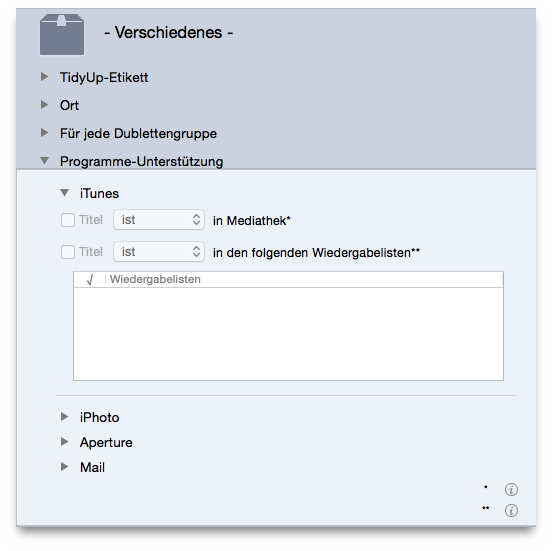
is activated only if the search was made not only in the application’s database, but also in other locations. It is useful to leave untouched the searched library.
Example: assume that you have made a search for duplicates in the
iTunes library and in a whole disk and you want to trash the items
that are not in the database, then here you must choose song is not
in library
and, to be sure to leave at least an item of each
duplicate group untouched on the disk, choose also report all but
one
from the Miscellaneous pane.
allows you to individuate or exclude the items contained in the chosen playlist(s).
