


Search Window
Advanced Mode
Simple Mode
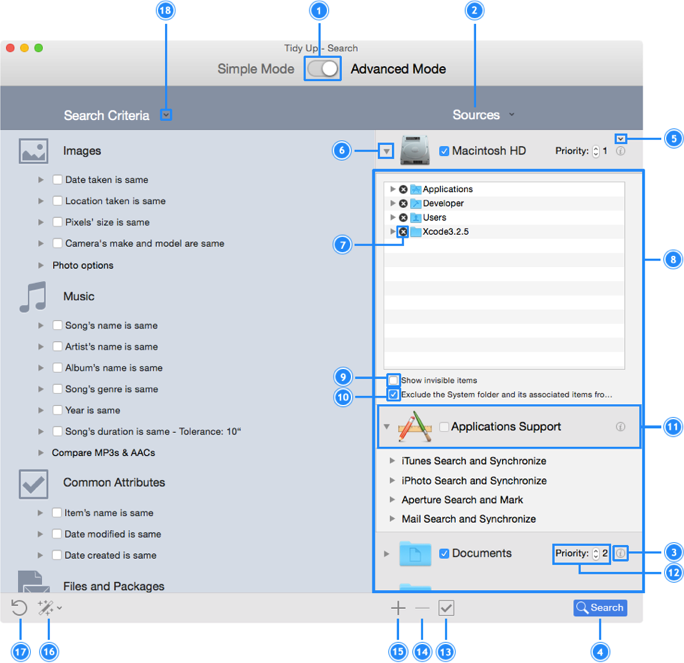
- General
-
- Switch to Advanced/Simple mode.
- Sources pulldown menu: from this menu you can save a set of
Sources, or open a saved one.
- Info button: shows information about the location.
- Starts the search, once both the search (or the criteria) and
locations are selected.
- Advanced Mode
-
- It’s visible only if there are items excluded from the
search. Clicking on it will open the list of folders you previously
excluded. From this list it’s possible to insert the folders back in
the Sources.
- Clicking on this triangle, you can open the list of folders
contained in the location. From this list you can exclude the
sub-folders you don’t need to search in.
- If you click on the
X
icon, Tidy Up will exclude the
chosen folder from the search locations.
- Sources: here you can check the locations where you want to
search.
- Gives the option to show the invisible items contained in the
location.
- Checking this button, you can exclude the System Folder from
the search. Useful to avoid deleting important files.
- Application Support: this location is loaded automatically.
From here, you can choose the iPhoto, Aperture, iTunes and Mail
libraries as a location to search in.
- This is the priority button: the higher the number, the more
important will be the files in this location. This is needed when
Tidy Up has to deal with Smart Boxs. See the section
Smart Boxs
for further information.
- Uncheck button. Uncheck all the locations in the Sources.
- Removes any selected folder or disk from the Sources.
- Adds any folder or mounted disk in your computer to the
Sources.
- Strategy button: start a new strategy or use a saved one.
- Uncheck the current selected search and any other checked
option (such as
report empty folders
).
- Criteria button: save a new criteria list, use a saved one,
import or export a criteria list.
- Simple Mode
-
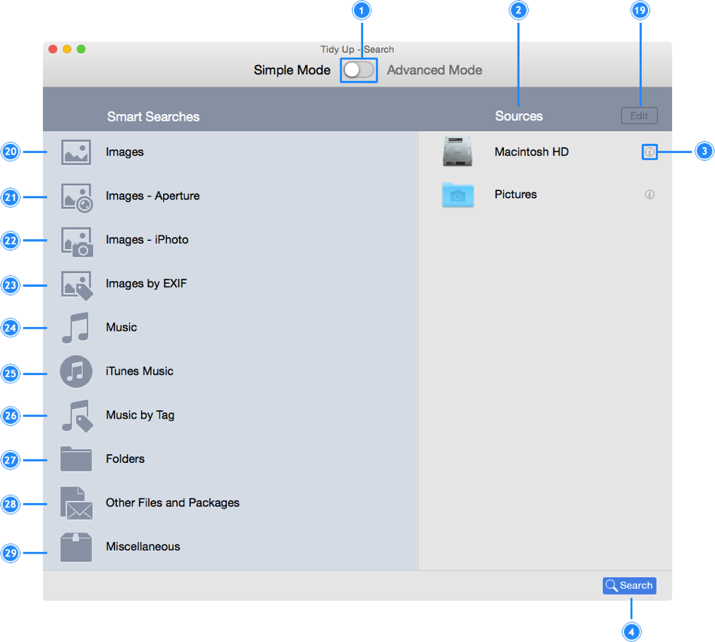
- Edit Button: allows you to edit the Sources.
- Images: this Smart Search contains general searches for images
in your computer or any other mounted disk.
- Aperture Images: this Smart Search contains searches for the
Aperture library.
- iPhoto Images: this Smart Search contains searches for the
iPhoto library.
- Images by EXIF: this Smart Search contains searches that allow
you to search for images using the EXIF data, such as date taken or
location taken.
- Music: this Smart Search contains general searches for music in
your computer or any mounted disk.
- iTunes Music: this Smart Search contains searches for the
iTunes library.
- Music by Tag: this Smart Search is useful to search for music
not owned by iTunes.
- Folders: this collections contains searches for folders.
- Other files and packages: this Smart Search contains searches
for files of different kinds.
- Miscellaneous collection: this Smart Search contains searches
useful to clean up your computer, such as cache, logs and preferences.
