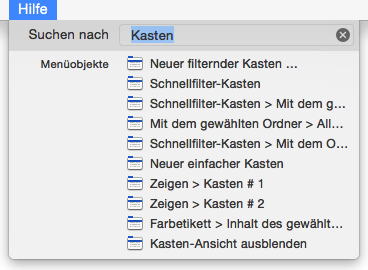
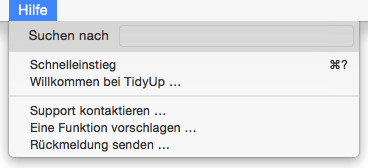
Tidy Up makes use of menus and contextual menus that support additional functionality and offer short cuts for performing common tasks.
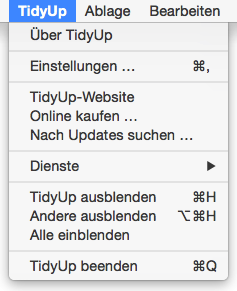
is used to view information about the application (version number, credits and copyright), check for updates, purchase a license, Quit the application and set various preferences.
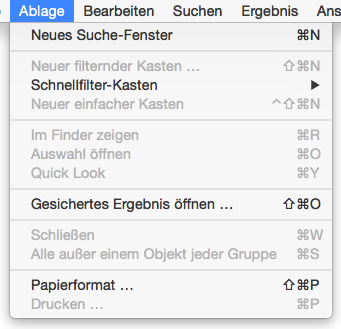
is used to create a new Search Window, new Smart Box or new Manual Box, as well as performing print functions. You can close the foremost window, select any found item and show it in the finder, open the item or review it in a Quick Look window.
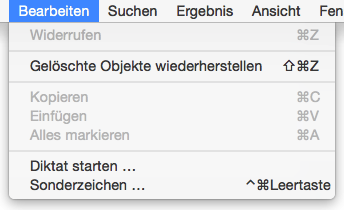
contains some of the more important functions including the ability to undo the last action and to restore a trashed item. Copy, paste and select all functions can be used with text fields; select all also applies to lists (e.g. Found List).
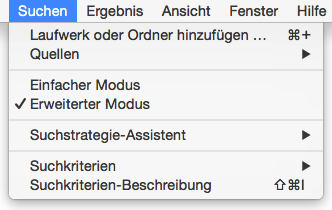
is used to access a number of options that modify search functionality, including toggling between Simple Mode and Advanced Mode. A Strategy Wizard can be created, saved or removed and saved Criteria sets can be loaded or removed. Criteria description will open a criteria description’s drawer window. Sources is managed via a submenu (giving the ability to save, remove or revert to last used list) and you can add a disk or folder to the Sources.
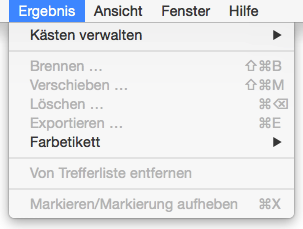
is primarily used as a shortcut to functionalities applicable to the Search results window. A series of submenus allows detailed management of Smart Boxs (including options such as modifying and deleting boxes). The contents of a box may be exported, burned, trashed, moved to a new location or have a colored label applied. By selecting a specific Item, it can be removed from the List or be checked/un-checked.
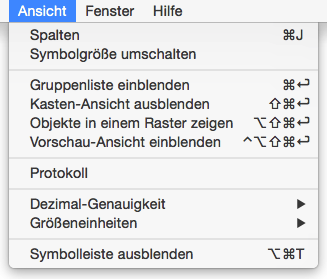
can be used to open the columns window, enabling a customized
columns view of the found list for a selected Box and to view the log
of your researches. The View options are explained in detail in the
chapter Item Visualization
. Decimal precision and scale size
units affect how items are displayed in a Found List, for example:
bytes, megabytes and number of decimals. Criteria panes is an
alternative to the Criteria Panes Visibility buttons for hiding or
showing Criteria Panes.
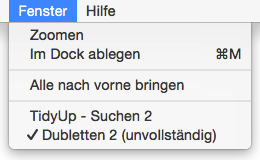
controls what window is foremost and active (search screen or any open results windows), with the additional option to reveal all open Tidy Up windows via the bring all to front command. In addition, you can zoom (maximize) and minimize (to Dock) a screen.
is used to access the Tidy Up help system: both the full user
manual and a quick tutorial on how to start using the application.
There's also the option to suggest a feature and to provide feedback.
You can contact us choosing the option Contact Support
.