


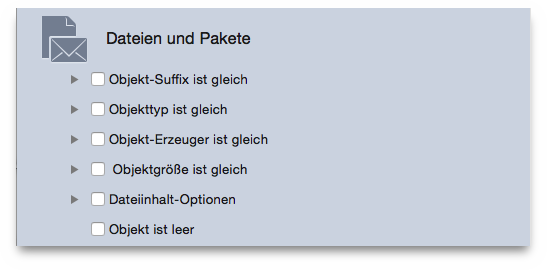
With the exception of Content of Files Options
and item
is empty
, each of these criteria can be used with the same, unique
or custom options.
Note: The steps listed below refer to Extension, but they can also be applied to Type (OS Type).
Further refining a search that would result in a huge list of
found items will help you to more quickly identify the items to
remove. If you choose the item’s extension
radio button you
can search for a particular file kind. You can opt for only a kind or
for a set of files containing multiple kinds; use either Type
or Extension
, or both. A list of files, types and extensions
can be found in the Appendix 2.
To assign a kind, you need few steps:
Choose the item’s extension
radio button.
Add the extension(s). This can be done in two ways: writing it
in the text field or, if you don’t know the exact extension (or OS
Type1 in the case of Type
criteria), you can
add it by choosing one of the menu items from the pull down
Choose...
menu. This menu offers different options:
Choose item extension...
: allows you to choose an
extension, whose name you do not precisely know, by selecting a file
in the Finder.
Choose application’s extensions owner
: allows you to
add all kinds of items that the chosen application can read and/or
write, including files loaded by the application itself that a user
can’t manage directly, such as plug-ins, file settings, etc...
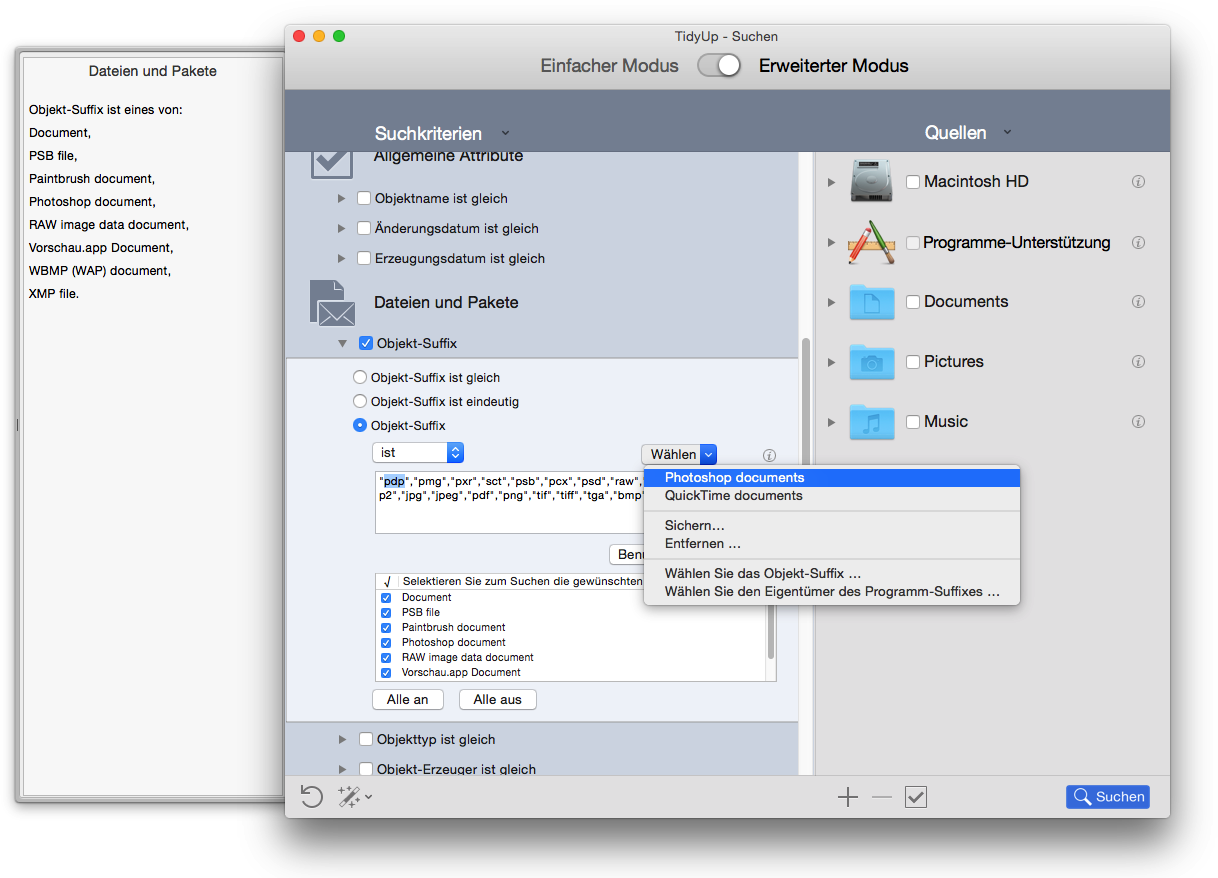
Photoshop and Quicktime documents (added by default as an example): clicking on one of these options, will add all the extensions that the application can read (In the image below Photoshop documents has been chosen). Other sets can be added by using the popup menu called Custom Set.
Save: allows you to save the extension list you created for later use.
Remove: allows you to delete any saved extension list.
file(s) kind to searchlist.
The Types and Extensions added will be automatically converted
to the correct file kind, added to the file(s) kind to search list and
noted in the Criteria Description
drawer. If the added text is
not recognized as a known file type, it will be interpreted as
Document.
Note that since the choice of a preferred application is subject
to any document binding preferences the user may have set, the kind
string will not necessarily be obtained from the default application,
but may instead be taken from a user-specified application that
overrides the default. For example, if the user has specified that
files of type PDF
should be opened in the Preview application
rather than in Acrobat, the kind string will be defined by Preview and
not by Acrobat.
Note that the item’s extension/type
option of Type
and Extension criteria works in OR mode; this means that a file may be
a match in either of the attributes or both.
To ensure you find all the needed kind, you must use both
criteria. However, there are some exceptions that can be applied to
files that normally are shared with other systems than Mac OS. See
Common Search Scenarios
for examples.
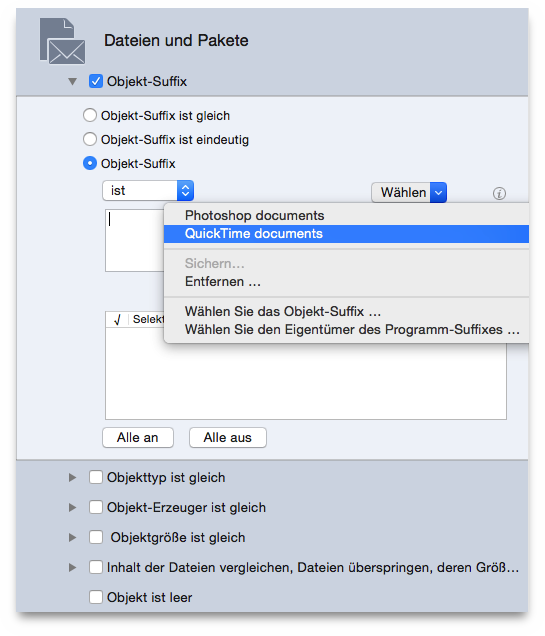
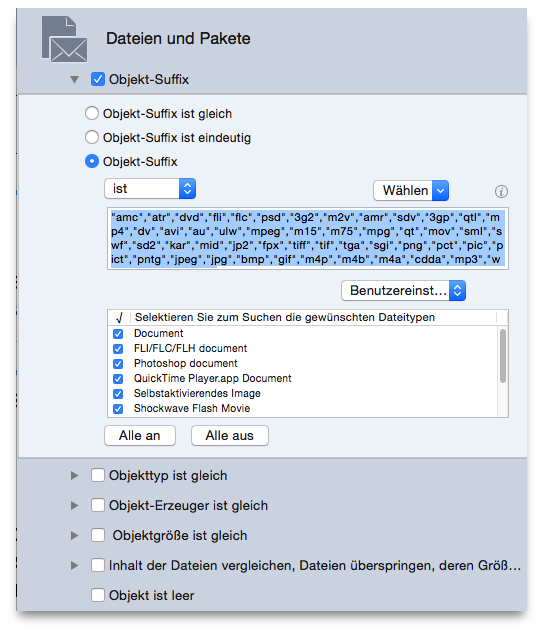
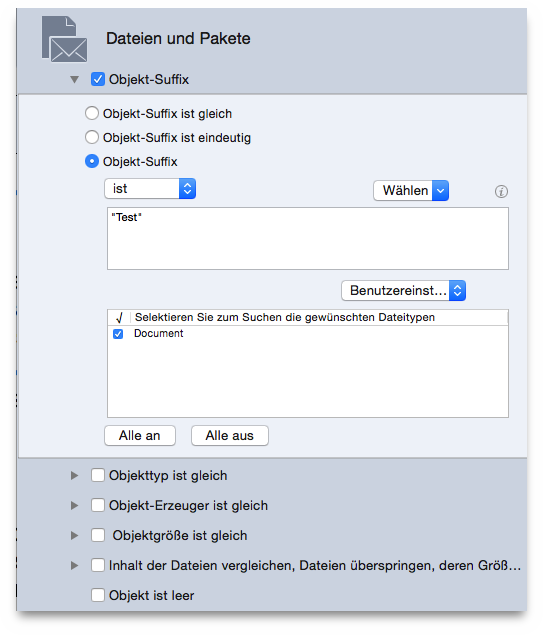
Image I: shows the items extension radio button selected, and the
Choose menu being used to select the QuickTime documents default set.
Image II: the QuickTime documents set has been chosen. Tidy Up has
pre-filled the text entry box with the list of QuickTime-readable file
extensions, the file kinds have been listed and automatically selected
in the file kind(s) to search list, and the Description window has
been updated to include the file extensions and logic associated with
this criteria selection.
Image III: the items in the text entry box have been deleted, and
a new extension Test
has been manually entered. Since,
Test
is not a recognized file type extension, it is showed as
Document
.
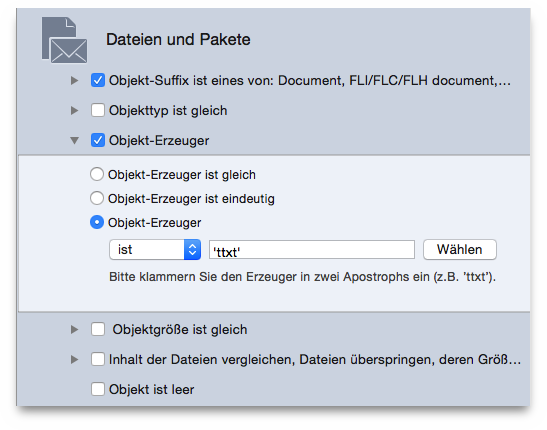
The Creator
is an OS-Type style code; it is a signature
of the application and in many cases it is included in any files
created, following a four character format. This criterion is useful
when you want to find the items created from a specific application.
Keep in mind that most of the modern files don’t have a creator
code. As with the Type
criterion, if you don’t know the exact
code you can add it by clicking on the Choose...
button.
The Size criteria is needed to have a true
duplicates
list. However, you may be considering a search where size is not an
important factor (i.e. a list of duplicate songs by title, artist and
album).
You can use the item's size...
option to search within a
size range:
Choose one of the 5 different options in the popup menu
(is
, is greater than
, etc...).
Enter the size in the text fields.
Assign the desired unit of measurement (kilobytes or megabytes).
However, choosing this option won't allow you to select item's
size is same
or any other option from the Content of files
options
.
The option Limit the search to the files whose size...
allows you to limit the search to files of a certain size even when a
Size option is already checked. This way you'll be able to limit the
search to significant files, for example excluding all the files whose
size is less than 1 MB.
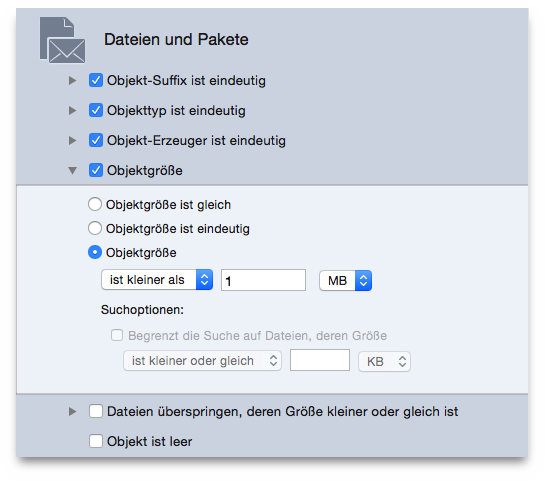
In the screenshot above, the search has been configured to locate items whose size is less than one megabyte.
Tidy Up has been optimized to offer class-leading searching
performance. However, speed is linked to variables, some of which you
can influence. Disk and network speed have an effect, but they are
generally out of the user’s control if searching for files through
those access methods is required. A criteria set that can make a
significant difference in search speeds is the Compare the
content
option. This is a time-consuming search option and it is a
good rule to include other criteria when performing a search using
this criterion. Doing so, will help reducing the file set that is
subject to the Compare by content
search, significantly
speeding up the process.
Compare the content of files.
Skip files whose size is lower or equal to: you can set a size limit; Tidy Up will not take into account all the items whose size is lower or equal to the set one.
Treat the packages as folders: if checked, Tidy Up will treat
all the packages as folders, searching within them.
Use this option with caution if you don’t have a good
knowledge of how the operating system works because you may lose
important data.
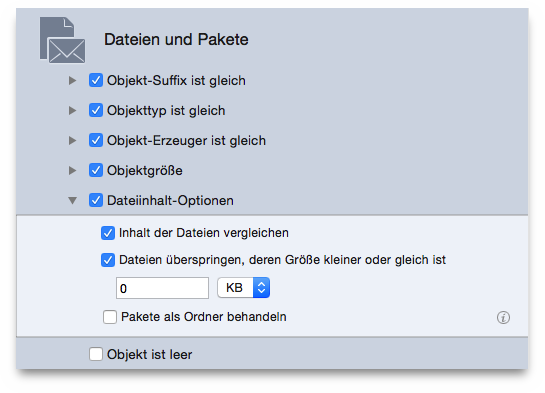
In the screenshot above, the compare the content of files
criterion has been selected, but to reduce the scope of the search and
speed up the process, other criteria have also been selected in Common
Attributes. If you want to ignore small items, you can set a size in
the skip files
options and check them.
item [Item is empty] When this option is checked, Tidy Up will
search only for empty items; for this reason many other criteria will
be disabled, such as item’s size
and Content of files
options
.
